
5 Signs Your Endpoint Just Got Hit With an Infostealer (And What to Do in the Next Hour)

![[HERO] 5 Signs Your Endpoint Just Got Hit With an Infostealer (And What to Do in the Next Hour)](https://cdn.marblism.com/NNR3WL4AbLg.webp)
Your antivirus says everything's fine. Your endpoints are running smoothly. No red flags in sight.
And yet, credentials from your organisation just appeared in a data leak marketplace.
This is how infostealers work. They don't announce themselves with ransomware splash screens or crashed servers. They quietly harvest browser passwords, session tokens, and authentication cookies: then vanish before most security tools notice anything happened.
Malware families like Redline and Lumma Stealer are designed specifically to bypass signature-based antivirus. They're lightweight, fast, and increasingly sophisticated at evading detection.
The good news? They leave traces. Subtle ones, but traceable.
Here's what to watch for: and what to do in the next 60 minutes if you spot them.
What Makes Infostealers Different
Unlike ransomware or traditional malware, infostealers don't damage your systems.
They extract value silently:
Browser-saved passwords
Autofill data and payment details
Session cookies (which let attackers bypass MFA)
Cryptocurrency wallets
VPN and RDP credentials
FTP and email client passwords
By the time you discover the breach, your credentials may already be sold, resold, and actively used to access customer systems or supplier portals.
This isn't negligence. It's the default. Most small teams rely on Defender or basic AV, which blocks known threats effectively: but struggles with the polymorphic, frequently-updated variants common to infostealer campaigns.

The 5 Warning Signs
1. PowerShell Running With Suspicious Parameters
Infostealers like Lumma frequently use PowerShell for initial payload delivery and execution.
Watch for PowerShell processes launched with:
Hidden window styles (
-WindowStyle Hidden)Execution policy bypasses (
-ExecutionPolicy Bypass)Encoded or obfuscated commands (
-EncodedCommand)Downloads from unfamiliar domains
These aren't always malicious: admins use PowerShell legitimately. But when you see them running unexpectedly, especially from user-initiated actions like double-clicking a file or following a link, that's a red flag.
2. Unusual Outbound Traffic to Unfamiliar IPs
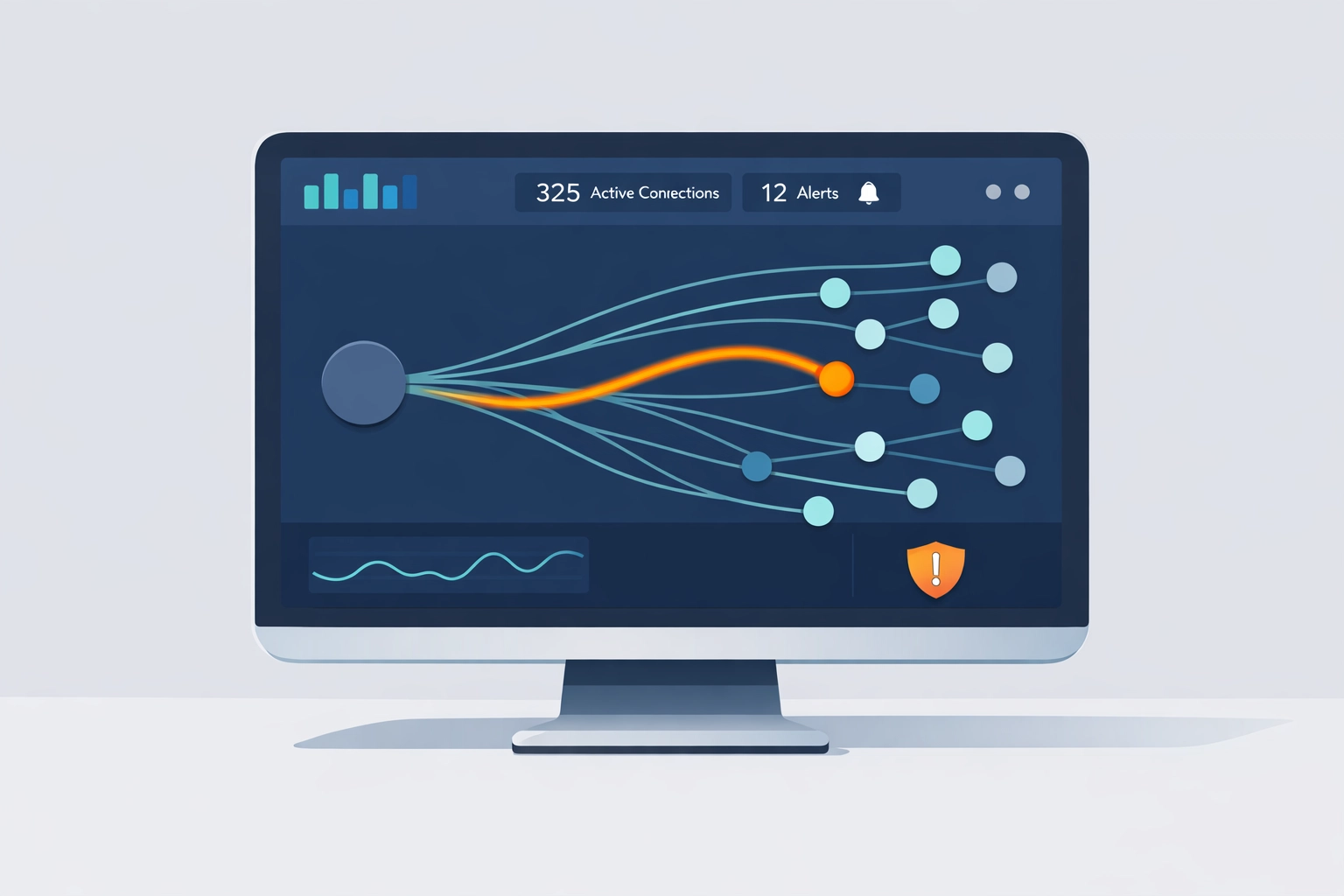
Infostealers need to exfiltrate data. That means outbound connections to command-and-control servers.
Look for:
Traffic to non-standard ports or unusual geographies
Repeated small uploads (credential files are tiny)
Connections immediately following suspicious file execution
HTTPS traffic to newly registered or low-reputation domains
Most basic AV doesn't monitor outbound behaviour closely. FortiSense tracks this natively: it watches for unusual outbound patterns that don't match your organisation's typical network behaviour.
3. Browser Profile Access From Unexpected Processes
Infostealers target browser data stores directly. Chrome, Edge, and Firefox all store credentials in predictable file locations.
Red flags include:
Non-browser processes accessing
Login Data,Cookies, orWeb DatafilesCopying browser profile directories to temp folders
Accessing credential stores outside normal browser operation
Processes reading multiple browser profiles sequentially
This behaviour is extremely unusual in legitimate software. If you see it, assume compromise until proven otherwise.
4. New or Modified Files in Temp Directories
Infostealers often create staging areas for harvested data before exfiltration.
Watch for:
Newly created folders with random or obfuscated names in
%TEMP%,%APPDATA%, or%LOCALAPPDATA%ZIP or RAR archives appearing in temp locations
Text files containing structured data (credential dumps are often formatted as CSVs or JSON)
Files created immediately after suspicious process execution
These staging areas exist briefly: sometimes only seconds: before being uploaded and deleted. Catching them requires real-time endpoint visibility.
5. System Performance Degradation During Normal Operation
While infostealers are lightweight, the harvesting process uses resources.
Signs include:
Brief CPU spikes without user-initiated activity
Temporary network slowdowns
Disk I/O increases during idle periods
Memory usage spikes from unfamiliar processes
This is the subtlest indicator, but when combined with other signs, it completes the picture.
What to Do in the Next Hour
If you've spotted one or more of these indicators, act quickly. The following checklist assumes you're a small team without a SOC: practical steps you can take immediately.
Minutes 1–15: Isolate and Document
Disconnect the affected endpoint from the network. If it's a server, this gets complicated: but if it's a user workstation, pull the network cable or disable WiFi immediately.
Take screenshots of:
Running processes (Task Manager → Details tab)
Recent PowerShell history (
Get-Historyif accessible)Network connections (
netstat -anofrom Command Prompt)Recent file modifications in temp directories
This documentation helps if you need external assistance or want to understand the attack vector later.
Minutes 15–30: Run a Full Scan
Use Windows Defender Offline or another reputable scanner that operates outside the primary OS. Many infostealers include anti-detection mechanisms that interfere with real-time scans.
Enable Defender's advanced features if not already active:
Tamper protection
Network protection
Cloud-delivered protection
Run the scan. Don't reconnect to the network yet.
Minutes 30–45: Reset Credentials
This is non-negotiable. Assume any password or session token stored on that device is compromised.
Reset immediately:
Email accounts accessed from that endpoint
Cloud admin panels (Microsoft 365, Google Workspace, AWS, etc.)
VPNs and remote access tools
Any service with saved credentials in the browser
Customer-facing systems if accessed from this device
Prioritise accounts with elevated privileges. Start with admin credentials, work down to standard user access.
Minutes 45–60: Check for Lateral Movement
If the compromised endpoint had access to network shares or internal systems, check those for unusual activity:
Failed login attempts on servers or other endpoints
New scheduled tasks or services created
Unusual file access patterns
Logins from the compromised device during the infection window
Most infostealers don't move laterally themselves, but attackers using stolen credentials often do.
After the Hour: Monitor and Recover
Once the immediate threat is contained:
Reimage the affected endpoint if possible (safest option)
Monitor for account compromise using your authentication logs
Check for your domain credentials on breach monitoring services
Review how the infection occurred and update policies accordingly

Where FortiSense Fits
FortiSense won't prevent an infostealer from executing: that's not what it's designed to do.
What it does provide is early warning visibility into the exact behaviours described above:
Unusual outbound traffic patterns flagged in real time
Browser profile access by non-browser processes
Suspicious PowerShell execution with context
File creation in staging directories
Process behaviour that doesn't match your baseline
Rather than relying on signatures or known-bad indicators, FortiSense watches for risk patterns: the subtle anomalies that infostealers leave behind even when they're polymorphic or zero-day.
This means you see the warning signs before credentials appear in a data leak, not after.
It's designed for teams exactly like yours: no SOC, no dedicated security staff, but a need to spot these threats early enough to respond effectively.
Closing Thoughts
Infostealers represent a different class of threat. They're not dramatic. They don't lock your files or demand Bitcoin.
They quietly extract the keys to your systems: and by the time most organisations realise it, those keys are already in use.
The 5 signs above are your early warning system. Watch for them. If you spot them, act within the hour. And if you'd like visibility into these patterns without building out a full security operation, that's precisely what FortiSense was built to provide.
Curious how it looks in practice? You can try FortiSense free for 14 days: no credit card, no commitment required. See what's actually happening on your endpoints before the credentials show up in a leak.
Join Founders Access for beta features and direct support during development.
Learn more →